NoSnus Widgets: Add Them to Your Home Screen
Updated
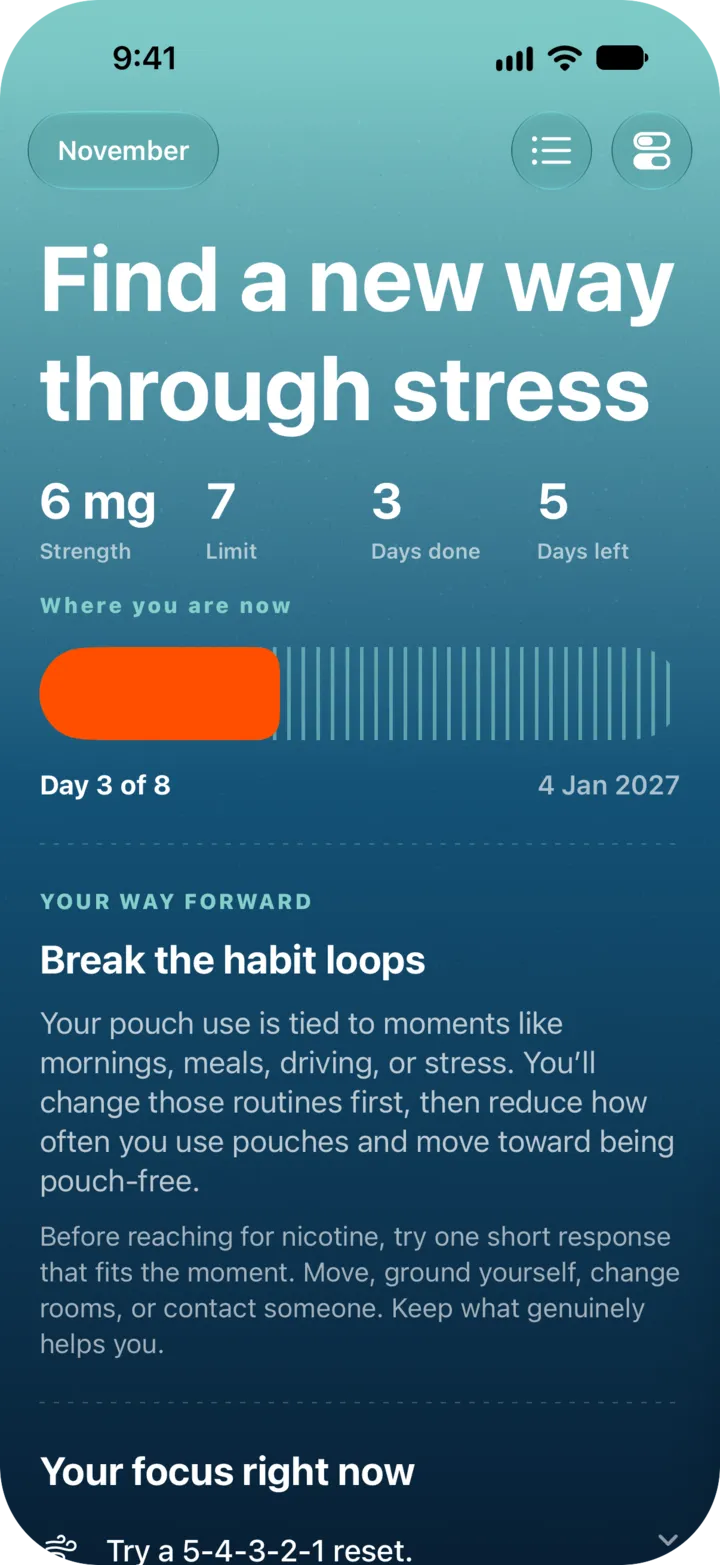
NoSnus has five widgets: Plan, Usage, Commitment, Usage comparison and Streak. They show your progress from the app. They do not log pouches, so to log one you open NoSnus.
| Widget | Sizes | What it shows | Tap opens |
|---|---|---|---|
| Plan | Small, medium, Lock Screen | Your current step and its day count | Plan |
| Usage | Medium | Your pouch use against your plan limit, for Day, Week or Month | Logs |
| Commitment | Small, medium | The commitment you wrote | You |
| Usage comparison | Medium | This period against the previous one, for Day, Week, Month or Year | You |
| Streak | Small, medium, Lock Screen | Your streak and your recent days | You |
Add a widget to your Home Screen
- Touch and hold an empty spot on the Home Screen until the icons jiggle.
- Tap the plus, then search for NoSnus.
- Pick a widget and a size, then tap “Add Widget”.
Add a widget to your Lock Screen
Touch and hold the Lock Screen, tap “Customize”, choose the Lock Screen, tap the widget area and pick NoSnus. Only Plan and Streak come in a Lock Screen size.
Change the range or background
Touch and hold the widget and tap “Edit Widget”. Every Home Screen widget has a background: Device, Light, Dark or Black. Usage and Usage comparison also let you choose the period.
Good to know
- Widgets read the data that is already on your iPhone, so they change after you log or change something in the app. iOS decides exactly when a widget redraws.
- NoSnus also shows a short widget guide after setup if you have NoSnus Pro. Its steps are “Touch and hold the Home Screen”, “Tap the plus, then find NoSnus” and “Choose a widget and place it”.
Still stuck? Email support@cntxtlabs.co.